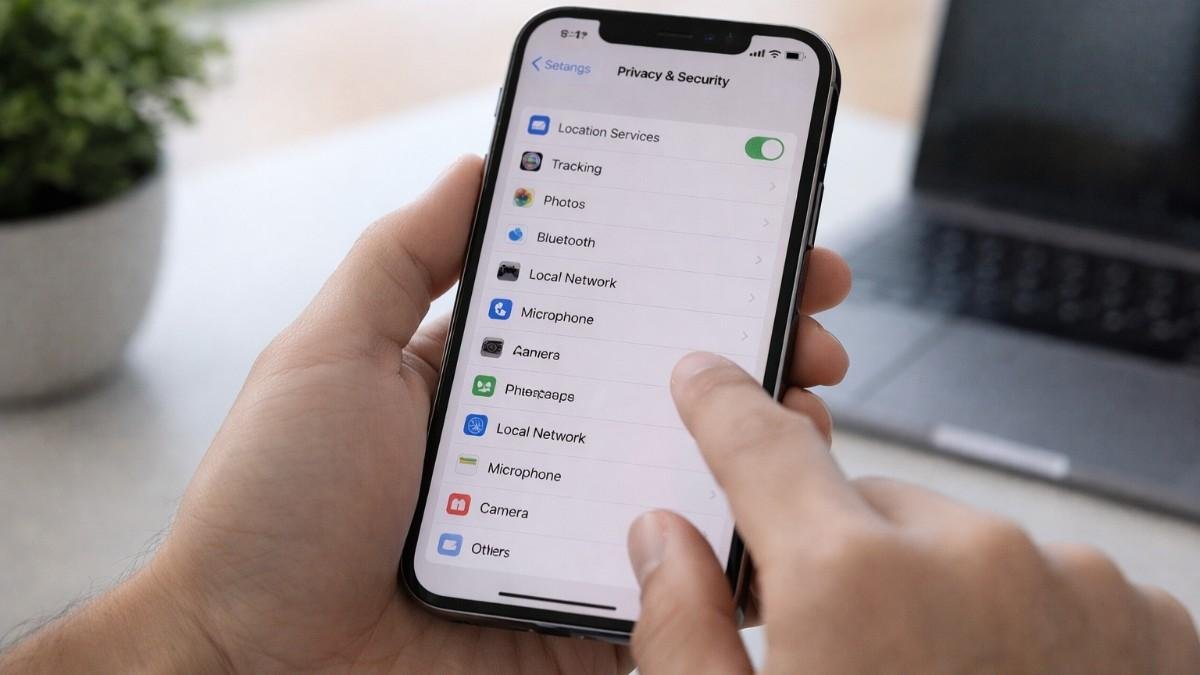
Managing iPhone privacy settings became a habit for me after realizing how much data my phone quietly shared. The moment I explored the Privacy and Security menu, I saw how many permissions were active without my awareness. Since then, I have treated privacy like a routine check, not a one time setup, and that shift has made my phone feel far more secure.
Smarter Way To Stay Private
Understanding iPhone privacy settings is the first step toward taking control of your data. Apple provides a strong privacy foundation, but many settings are designed for convenience rather than strict control.
Apps often request access to location, contacts, or sensors, and once allowed, they continue using that access silently in the background. Over time, this builds a detailed picture of your habits.
From my experience, the real risk is not always hacking but passive tracking. Data gets shared through permissions you forget about. Once I started reviewing these settings regularly, I noticed fewer targeted ads and better control over what my device shares.
What Your IPhone Shares By Default
Your device can share location data, app usage insights, and even background activity patterns. Many apps collect this data for analytics or advertising. Without adjusting settings, you are often sharing more than necessary.
The key insight is simple. Privacy improves when you actively manage permissions instead of relying on default settings.
Smarter Way To Stay Private
This is where you gain the most immediate control over your device.
App Tracking Transparency Control
This setting is one of the most important for reducing tracking. Go to Settings, open Privacy and Security, then tap Tracking. Turn off Allow Apps to Request to Track. This prevents apps from monitoring your behavior across different apps and websites. After disabling this, I noticed a clear drop in targeted ads.
Location Services Optimization
Location access should always be limited. Open Location Services under Privacy and Security and review each app. Change permissions from Always to While Using the App for most apps. You can also disable Precise Location for apps like weather or news that do not need exact tracking.
Microphone And Camera Access Review
These permissions require careful attention. Under Privacy and Security, check Microphone and Camera settings. Remove access for apps that do not need it. I often find apps that retain access long after I stop using them, which makes regular checks essential.
App Privacy Report And Data Insights
This feature helps you understand how apps behave behind the scenes.
How App Privacy Report Works
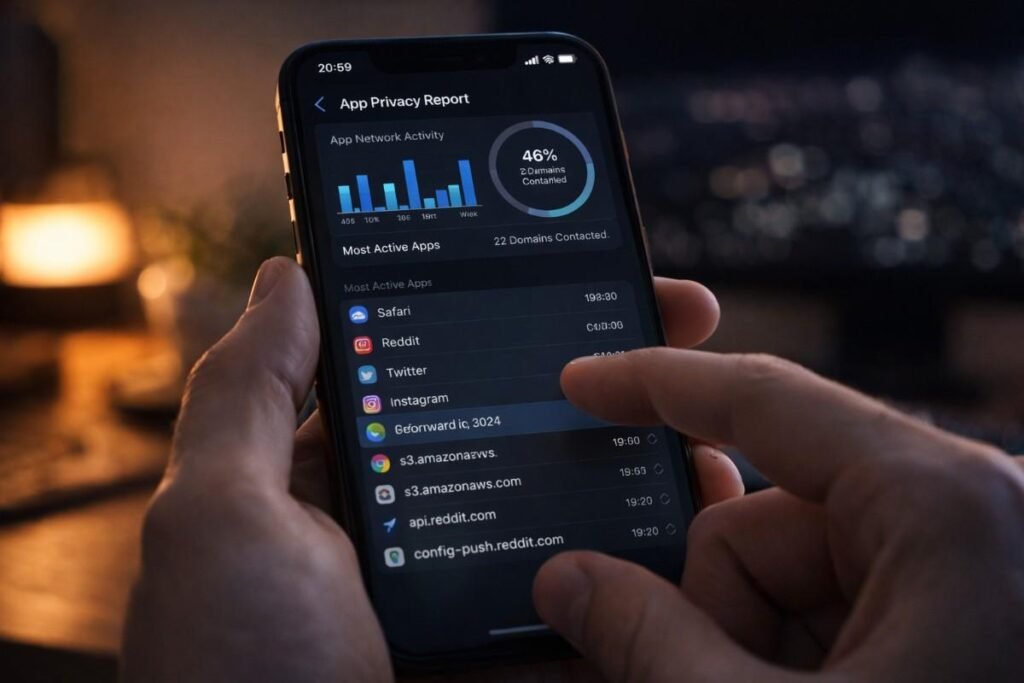
It gives visibility into app activity. Scroll down in Privacy and Security and enable App Privacy Report. This shows how often apps access your data and which domains they contact. When I first reviewed mine, I discovered apps accessing data more frequently than expected.
Why Monitoring App Activity Matters
Tracking patterns become clearer over time. This report helps you identify unusual behavior and decide whether to remove permissions or uninstall apps. It turns privacy from guesswork into something measurable.
Smarter Way To Stay Private
These features add another layer of security beyond basic controls.
Stolen Device Protection Settings
This protects your device in risky situations.
Found under Face ID and Passcode, Stolen Device Protection adds a security delay for sensitive actions when you are away from familiar locations. This prevents quick changes to important settings if your phone is taken.
Safari Privacy And Tracking Prevention
Your browser settings matter more than you think. Go to Safari settings and enable Prevent Cross Site Tracking. Also set Hide IP Address to From Trackers. This limits how websites follow your browsing activity across the internet.
Lock Screen Privacy Controls
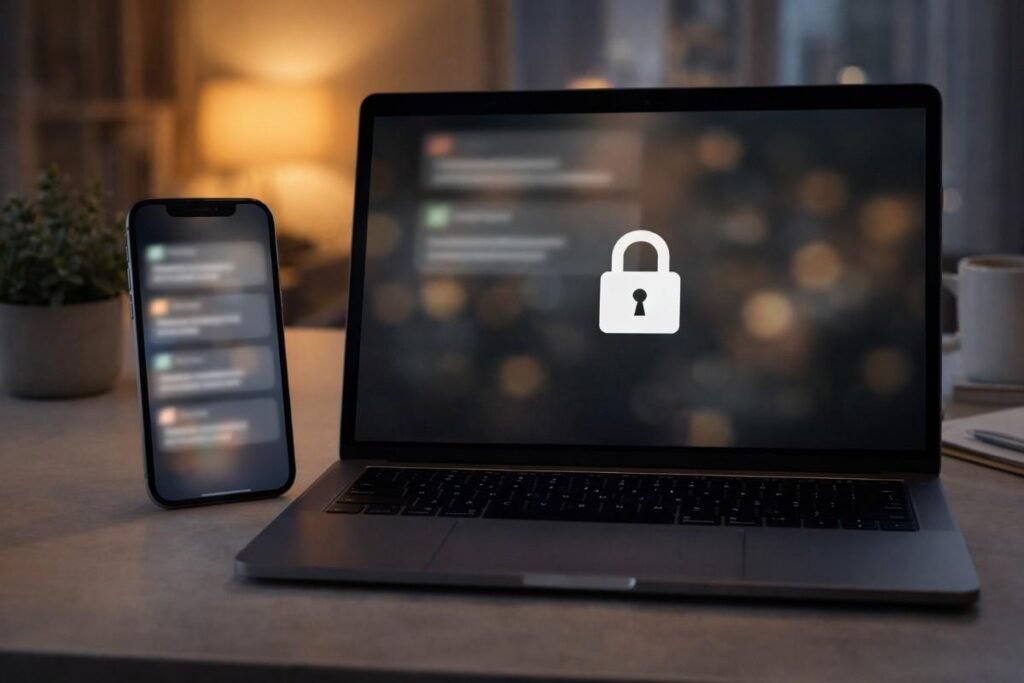
Your notifications can expose personal data. In Notifications settings, set Show Previews to When Unlocked. This ensures messages and alerts remain hidden until you unlock your phone, which is especially useful in public spaces.
Safety Check Feature
This is useful for personal safety and control. Safety Check in Privacy and Security allows you to review who you share data with and quickly stop sharing if needed. It is especially helpful if you suspect unauthorized access or want a quick privacy reset.
Implementing iPhone Privacy Settings Step By Step
This is the exact process I follow to keep my device secure.
- Start by opening Settings and navigating to Privacy and Security. Tap Tracking and turn off mobile app tracking requests.
- This immediately reduces cross app monitoring. Next, go to Location Services and review each app individually, switching most to While Using the App and disabling Precise Location where it is not needed.
- Then check Microphone and Camera permissions and remove access for apps that do not require it. Scroll down to enable App Privacy Report so you can monitor app behavior over time.
- Finally, review Safari privacy options, turn on tracking prevention, and adjust notification previews to ensure sensitive information stays hidden.
Real Life Benefits Of iPhone Privacy Settings
These changes make a difference in everyday situations.
Public WiFi And Travel Safety
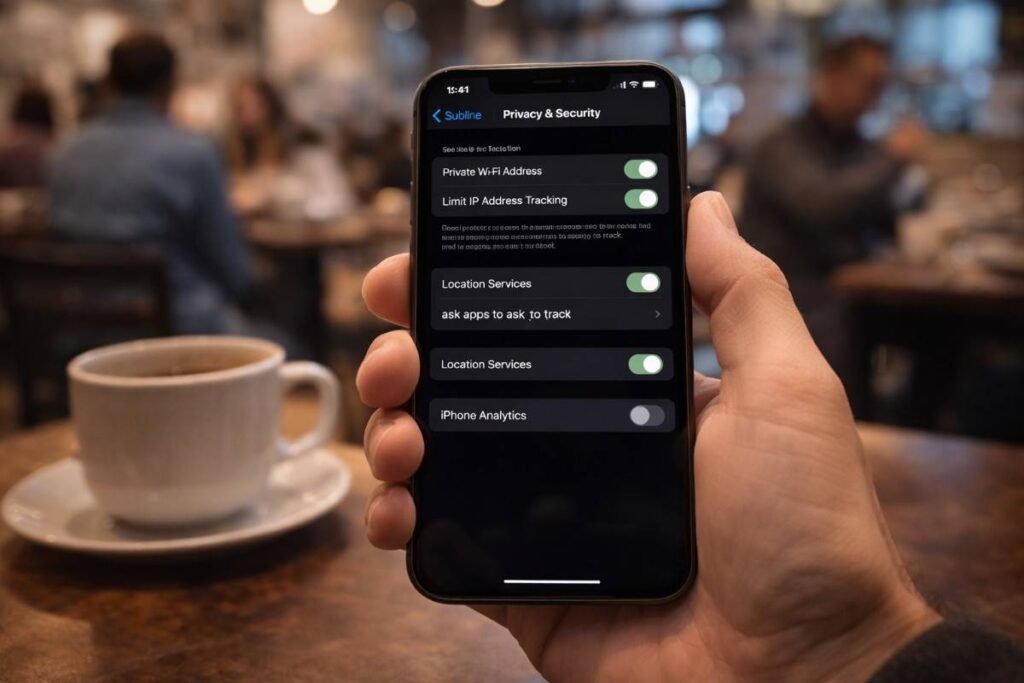
Privacy risks increase on shared networks. Whenever I connect to public WiFi, I feel more confident knowing my permissions are restricted. It reduces the chances of apps collecting unnecessary data in unsecured environments.
Social Media And App Tracking
Apps monitor more than just what you post. Limiting permissions reduces how much social platforms can track your behavior even you’re on iPhone taking long exposure photography outdoors. This leads to fewer targeted ads and less data sharing.
Lost Or Shared Device Protection
Privacy settings act as a safety net. If your phone is lost or shared, restricted permissions ensure that sensitive data remains protected. This is where proper setup proves its value instantly.
Frequently Asked Questions
1. Do iPhone Privacy Settings Improve Security?
Yes, they reduce tracking and limit data exposure, improving overall device security.
2. How Often Should I Check iPhone Privacy Settings?
Once a month or after installing new apps or updates is enough to stay protected.
3. Does Turning Off Tracking Affect App Performance?
No, most apps work normally, but with reduced personalized ads and tracking.
4. Are Default iPhone Privacy Settings Enough?
They are good but not optimized for maximum privacy. Manual adjustments provide better protection.
Smarter Way To Stay Private
Using iPhone privacy settings as part of a regular routine has completely changed how I use my device. It is no longer just about convenience but about control and awareness. Small changes like limiting permissions and reviewing tracking regularly create a safer digital environment. Once you build this habit, your iPhone becomes far more private and secure without sacrificing usability.